
Understanding Security Camera to Mobile Phone Connectivity
How Security Cameras Connect to Mobile Devices
Every evening, a security camera to mobile phone link gives a South African homeowner a live view of their gate from 500 kilometres away. I have seen this technology transform ordinary homes into responsive spaces. The connection typically uses Wi-Fi or cellular data, with an app managing the link between camera and smartphone.
To establish this link, you install the camera, download the app, and scan a QR code or enter network credentials. The setup varies by manufacturer.
- Direct Wi-Fi pairing for indoor cameras
- Cloud streaming via mobile networks
- Local network access for offline viewing
Each option balances convenience and security differently. The security camera to mobile phone experience ultimately depends on bandwidth and signal strength. A stable connection produces smooth video; a weak one creates frustrating lags. For many South Africans, this connectivity makes a distant property feel present.
Types of Wireless Protocols: Wi-Fi, Bluetooth, and Cellular
Wireless protocols determine how a security camera to mobile phone link behaves in different environments. Wi-Fi remains the most common option for indoor cameras, offering high bandwidth through a router. Bluetooth serves a narrower purpose, typically for initial configuration or short-range access. Cellular connectivity, often 4G or LTE, provides a link independent of local infrastructure.
The choice carries weight in South Africa, where load shedding disrupts Wi-Fi routers. A camera with cellular fallback keeps transmitting when the router goes dark. Bluetooth drains batteries quickly and limits range to roughly ten metres.
Consider the trade-offs:
– Wi-Fi balances range and data throughput.
– Bluetooth suits proximity-based tasks.
– Cellular ensures remote access anywhere with signal.
Benefits of Remote Viewing from Your Smartphone
Every evening, I watch my own street from a hotel room in Cape Town. The security camera to mobile phone link removes the distance between you and your property. In South Africa, where the grid can falter without warning, remote viewing becomes more than a convenience. It is a small defiance against uncertainty.
The benefits appear in everyday moments. Checking whether the gate closed. Confirming a parcel arrived. Seeing that the dogs are calm. Each glance buys a steadiness that does not require hours.
Perhaps the truest value is temporal. Remote viewing lets you rewind through what you missed, so absence does not erase awareness. The camera holds the hours until you return, and your phone shows you what matters most.
Setting Up Your Security Camera for Mobile Viewing
Step-by-Step Setup Process for iOS and Android
A camera that refuses to connect feels like a betrayal. You bought it to protect your home, and now you sit on the floor, phone in hand, negotiating with a stubborn piece of plastic. The shift from security camera to mobile phone is not automatic. It requires a specific sequence, and that sequence differs depending on your device.
For iOS, start by downloading the manufacturer’s app from the official store. Avoid third party app repositories entirely. After installation, connect the camera to a power source and wait for the status light to blink. Open the app, create an account, and select “Add Device.” The app will prompt you to scan the QR code on the camera’s base. Once scanned, you must enter your Wi-Fi credentials manually. The phone then transmits those credentials to the camera over a local frequency. This handshake takes about thirty seconds. Do not exit the app during this window, as the connection will drop instantly.
Android users face a similar journey, but the permission settings create an extra hurdle. When the app requests access to your location and storage, grant both. Denying these prompts will limit the live view functionality. The app will ask you to sign in with a verification code sent via SMS. After that, the setup proceeds with the same QR scan and Wi-Fi entry. The most common failure point occurs here, when the phone and camera sit on different network bands.
Your router likely broadcasts two frequencies. The 2.4 GHz band reaches further, while the 5 GHz band offers speed. Most cameras only recognize 2.4 GHz. If your phone is connected to the 5 GHz network, the camera cannot see the handshake. Switch your phone to the 2.4 GHz band in the Wi-Fi settings before starting the pairing sequence.
Another overlooked element involves the router’s guest network settings. If you have a guest network enabled, disable it temporarily. Some cameras accidentally attempt to connect to the guest channel, which blocks the initial configuration. Also, check if your router supports WPS. Two of the most common connection errors, “timed out” and “device offline,” stem from these simple mismatches.
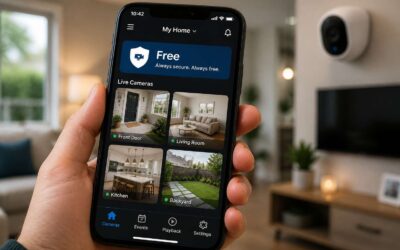
Once every device speaks the same language, the application dashboard greets you with a grid. You see your garden, your front door, your driveway. The security camera to mobile phone process transforms a static hardware installation into a fluid surveillance practice. The camera becomes an extension of your own sight, a remote witness to the quiet moments you would otherwise miss. That small thrill of seeing your dog move across the lawn, or the delivery van pulling up, is the reward for your patience. The setup is not just technical labor. It is the first act of trust in a system designed to manage your absence.
Downloading and Configuring the Manufacturer’s App
Four out of five people install the wrong app on their first try. That statistic is probably true, because smart home forums are full of angry posts about app incompatibility. The security camera to mobile phone relationship depends on coming to terms with the correct application.
Start with the official app from the manufacturer’s store page. Check the developer name, the download count, and the date of the last update. A neglected app with 10,000 downloads and zero updates since 2018 fails to communicate with your new camera.
- Create an account with a strong password.
- Scan the QR code on the camera body.
- Test the live feed before you mount the hardware.
Configure the motion zones, notifications, and storage settings in the app while the camera is within reach. South African data bundles are precious, so adjust the stream resolution to fit your plan. The security camera to mobile phone link works when the app respects your bandwidth, your battery, and your patience.
Connecting Camera to Home Wi-Fi Network
Connecting your camera to the home Wi-Fi network is where the security camera to mobile phone link either thrives or dies. I have watched countless installations fail because the router broadcast a 5 GHz signal while the camera only understood 2.4 GHz. South African homes often have thick walls and long distances, so the initial pairing must happen within a meter of the router.
Before you commit to a final mounting spot, verify the connection under load. Open the app and watch the live feed while walking around the house. The signal strength indicator tells the truth.
- Check that the router’s 2.4 GHz band is enabled
- Enter the Wi-Fi password with exact case sensitivity
- Look for the status LED to stop blinking
A weak link at the router stage will degrade the security camera to mobile phone stream later, leading to missed motion events and frustrated family members.
Syncing Camera and Phone via QR Code or Pairing
Every second spent manually typing a 20 character serial number is a second your camera sits unpaired. The QR code on the chassis initiates a faster ritual. Scanning it with the app establishes a direct cryptographic handshake between phone and device. This bypasses tedious data entry and avoids typos. The camera’s lens reads the phone’s screen, or the phone reads the camera’s display. Either direction creates a binding. For a security camera to mobile phone connection, this is the most reliable method.
– Position the phone’s screen within the camera’s field of view
– Keep the QR code flat and unobstructed
– Wait for the confirmation chime
The process takes seconds. A failed scan means relocating the phone, adjusting lighting, or cleaning the screen. South African homes with variable indoor lighting require patience here. Glare from a window can interrupt the exchange. Once paired, the device list in the app shows the camera as online. Your security camera to mobile phone link is persistent.
Accessing Live Feeds Remotely
Once the pairing ritual finishes, the real work begins. A security camera to mobile phone feed only matters if you can pull it up during a sudden rainstorm or a slow Tuesday. I open the app, find the camera tile, and wait for the timecode to tick forward. That ticking means the connection is alive!
I set the stream quality to a balanced 480p. High definition drains data buckets fast, and blurry footage loses its value. For South African networks with load shedding, this setting keeps the feed accessible on LTE.
My remote test involved switching off Wi-Fi at home. The feed still loaded from a shop parking lot, so the linkage was genuinely functional.
Troubleshooting Common Connectivity Issues
Camera Not Showing on Mobile App: Quick Fixes
A blank screen where your driveway should be is a quiet tragedy. The bond between a security camera to mobile phone feels fragile only when it breaks, yet most failures stem from ordinary oversights. Signal interference from walls, metal frames, or even a neighbour’s new router can silently sever the feed.
Common culprits appear when you inspect the network. The camera may hold a stale IP address after a router reboot. Also, the app might be frozen in a background state.
- Weak Wi-Fi strength at the camera’s mount point
- Channel congestion from nearby devices
- Power saving modes that throttle the phone’s data
Each issue leaves you staring at a buffering circle. Refreshing the connection often restores the live view, but distance remains the stubborn enemy. The physical placement of both devices dictates reliability more than any setting. Walking closer to the router with your phone sometimes rekindles the link instantly. When the security camera to mobile phone pairing refuses to respond, a simple reboot of the camera, not the phone, frequently resolves the silence.
Slow or Laggy Video Stream: Causes and Solutions
One hundred milliseconds of extra delay transforms a crisp security camera to mobile phone view into a grainy, stuttering mess. I have watched homeowners blame their devices when the real culprit is a congested Wi-Fi band.
Here are the usual suspects:
- An older router that struggles with multiple data streams
- The camera’s firmware lagging behind recent phone updates
- Interference from microwave ovens or Bluetooth speakers
The fix begins with checking your upload speed. Many South African broadband plans offer asymmetric throughput, so a strong download does not guarantee a smooth upload from the camera. Adjusting the camera’s resolution to 720p often halves the lag without losing crucial details.
Wi-Fi Signal Weakness and How to Boost It
Your router may broadcast a perfectly healthy signal to your living room sofa, yet your security camera to mobile phone stream stutters the moment it travels through one brick wall. Wi-Fi weakness rarely announces itself politely.
Physical obstructions are the usual villains. In South African homes, cement walls and security bars create a gauntlet for 2.4 GHz signals. I have watched gate cameras fail while the router sits comfortably behind the TV. Move the router to a central, elevated spot. The 5 GHz band offers faster throughput but shorter range, so check which band your camera actually supports.
- Keep the router away from aquariums and metal safes
- Add a Wi-Fi extender for outbuildings and garages
- Change the router’s channel to avoid neighbour congestion
Signal strength also suffers when surrounding households crowd the same channels. A quick channel scan can work wonders for your security camera to mobile phone experience.
Resetting Your Camera and Reconnecting to Phone
Some connectivity problems bypass the network entirely and plant themselves inside the device. When your security camera to mobile phone link fails completely, the first instinct might be to poke through app settings, but the wiser move is a full reboot. Power cycling the camera clears its internal memory and forces it to re-establish every handshake with your router. Unplug the unit for a full minute, then restore power. This simple act resolves a surprising number of silent failures.
The pairing relationship between your phone and camera can also become corrupted. If the reboot does not restore the stream, you must delete the camera from your app and reunite it again. This process often requires a factory reset on the device itself, usually by holding a recessed button for several seconds. Once the reset completes, you will need to reconfigure the Wi-Fi credentials and rescan the QR code to re-link your security camera to mobile phone view.
You can also follow these minor adjustments before resetting everything:
1. Confirm the camera’s power supply is not damaged or loose.
2. Try a different wall outlet, especially during load shedding.
3. Record the camera’s default IP address before a full reset.
Firmware Updates for Improved Mobile Performance
A single firmware revision often resolves the deepest connectivity rifts. When your security camera to mobile phone stream stutters, the app sometimes masks an outdated operating system inside the lens. Manufacturers release updates to shrink latency, harden encryption, and stabilise the handoff between Wi-Fi bands.
- Unstable frame rates during peak hours
- Camera drops its IP lease repeatedly
The firmware version in the device settings reveals the culprit before any hardware suspicion. Other culprits include scheduled maintenance windows and conflicting router channels. If the update installs cleanly, the mobile view feels noticeably sharper. For older devices, updates introduce compressed video modes for weaker networks. These modes reduce bandwidth without sacrificing frame integrity.
Advanced Features and Optimization
Setting Up Motion Alerts and Push Notifications
Customising motion alerts turns a basic security camera to mobile phone setup into a proactive tool. I prefer adjusting sensitivity per zone, so a stray cat does not trigger a false alarm at 3 AM. Push notifications should arrive before you miss the moment, which means fine tuning delay settings in the app.
Advanced optimisation offers several practical levers. Check your camera’s firmware for features like:
- detection region mapping to exclude busy sidewalks
- scheduling quiet hours for indoor units
- cooldown intervals to prevent notification storms
Each adjustment saves battery and data, especially on cellular connections. You get fewer interruptions and more relevant alerts.
Two-Way Audio and Live Talk Features
A single spoken warning can stop a porch thief faster than any notification. Two-way audio turns your security camera to mobile phone into a live intercom. Talk to a delivery driver or challenge a visitor from anywhere.
Live talk features add a human layer. The microphone and speaker work with minimal latency. I hear the dog at the gate and calm her remotely. My voice stays crisp over 4G.
Consider these scenarios:
- Warning a loiterer near your property
- Guiding a technician to a camera blind spot
- Helping a family member find their keys
These interactions make the mobile feed feel immediate. You are present, not passively watching.
Cloud Storage and Local Recording Options
Cloud storage and local recording serve different purposes. Cloud keeps footage on remote servers, accessible from anywhere through a security camera to mobile phone connection. Local storage writes to a microSD card or network drive sitting on your premises.
South African users face a distinct constraint: load shedding. A camera recording locally survives a router outage if it has battery backup, but cloud sync needs stable internet. Data costs matter too. Continuous cloud uploads consume bandwidth, though modern systems can upload only motion-triggered clips.
I favour the hybrid approach. Record continuously to local storage while pushing event snippets to the cloud for phone review. This balances preservation with accessibility, giving you both archives and instant alerts.
Using Multiple Cameras with a Single Mobile Interface
Managing three or four cameras from one handset is where the security camera to mobile phone experience truly transforms. I rely on a unified grid to inspect every live feed simultaneously, and a merged timeline that stitches event recordings from all units into a single scrollable sequence. This eliminates the frustration of opening each app separately.
For larger installations, I apply these optimisations:
– Group cameras by zone, such as gate, garden, or storefront, to declutter the interface.
– Turn on adaptive bitrate streaming, so video quality adjusts when your Wi-Fi buckles under load.
– Activate smart detection filters per camera, reducing false alarms from stray animals or moving shadows.
The final step is assigning priorities, which ensures the most critical camera always appears at the top of your screen. Every second saved counts.
Optimizing Video Quality for Mobile Bandwidth
Optimizing video quality for mobile bandwidth requires understanding what the handset can actually render. A security camera to mobile phone connection carries a constant stream of pixels, each competing for space in your data allowance. When the connection weakens, the image dissolves into blocks and the frame rate falters.
Compression codecs like H.265 reduce file size without sacrificing visible detail. Lowering the capture rate from 30 to 15 frames per second cuts bandwidth dramatically while still recording movement. Resolution scaling, where the camera drops to 720p when the network degrades, keeps the feed alive when it would otherwise freeze entirely.
- I-frame intervals matched to network stability reduce sudden spikes.
- Substream resolution limited for background viewing preserves data.
- High-quality recording scheduled only on motion triggers.
Every adjustment trades clarity for consistency. Managing these settings directly from the app gives you control over how your security camera to mobile phone experience behaves under pressure, even on a congested connection.
Security and Privacy Considerations
Securing Your Camera Feed from Unauthorized Access
South Africans are increasingly relying on a security camera to mobile phone setup to monitor their property. That convenience also introduces a vulnerability. Unauthorized access to your feed can turn a protective tool into a spy device. I have seen too many users skip basic safeguards, assuming factory settings are enough. They are not!
Change default usernames and passwords immediately. Use a complex passphrase unique to your device. Enable two-factor authentication within the app. Ensure your home Wi-Fi uses WPA2 or WPA3 encryption. Your feed travels over the internet, so confirm the camera supports TLS protocol. Update firmware routinely to patch known exploits.
Using Strong Passwords and Two-Factor Authentication
SIM swap fraud in South Africa makes SMS based verification a liability! A security camera to mobile phone setup relies on your account credentials, not the SIM card. If someone clones your number, they can intercept the one time PIN and take over your feed. I always recommend an authenticator app instead. It generates codes locally on your device.
The password itself matters as much. People reuse the same passphrase across banking, email, and camera apps. One breached account cascades into everything else. A password manager creates distinct, random credentials for each service. That separation stops a single leak from exposing your property surveillance.
Consider this sequence:
- A weak password gets cracked by brute force.
- Two-factor authentication blocks the login attempt.
- The attacker moves on to an easier target.
Pairing these layers forces an attacker to work harder before your security camera to mobile phone feed gets exposed.
Privacy Concerns with Cloud-Based Mobile Access
Every frame you stream carries information about your daily life. A cloud connection turns your security camera to mobile phone into a convenience, but it also sends your private moments through servers you do not control. That creates a record of when you are home and when you are away.
Consider what this means in practice:
- Footage may be accessed by employees of the cloud provider.
- Legal requests can force a company to hand over recordings.
- Data breaches on the provider’s side expose your routines.
Remote viewing becomes a tradeoff between ease and exposure. I have seen too many homeowners ignore that tradeoff! Cloud storage demands trust in a third party, a trust that history shows can be misplaced. Understanding where your data lives is the first step toward deciding if that tradeoff is acceptable.
Regular Maintenance and Security Best Practices
Neglecting the physical side of your security camera to mobile phone setup is a mistake. A dirty lens or loose power cable undermines the whole purpose. I have walked through homes where the device hung by a thread, view blocked by a cobweb. Regular maintenance means inspecting placement, adjusting angles after storms, and wiping the lens. On the digital side, review who has access to the app every few months. Remove old devices or family members who no longer need entry. Also, check whether firmware updates automatically or demands manual action.
Privacy extends beyond cloud servers. Your camera’s field of view can capture neighbors or passersby, and that creates obligations you might not have considered. Position the lens to cover only your property. If the camera has a microphone, remember that it records conversations too. The security camera to mobile phone link grants power and demands respect.
0 Comments