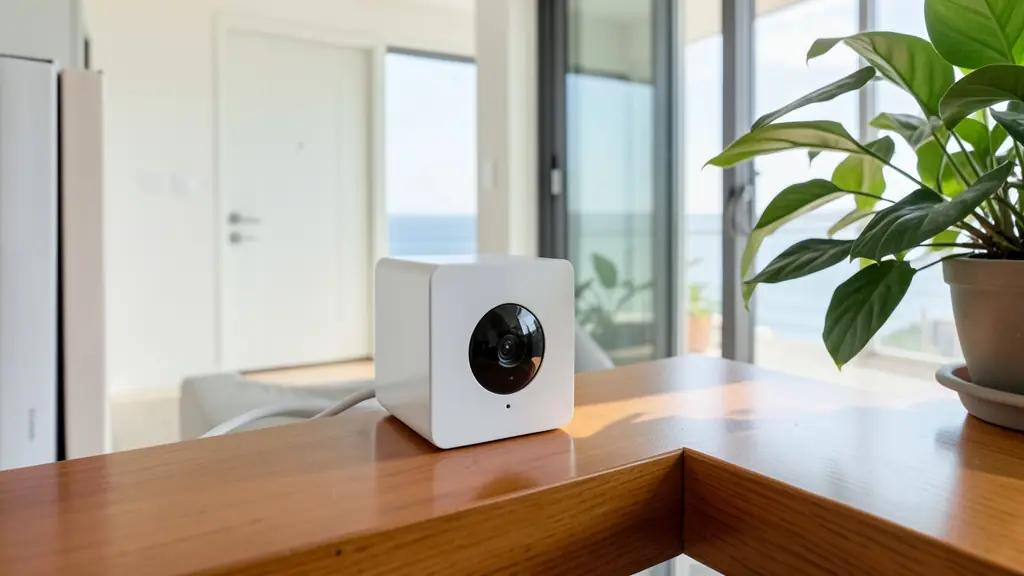
A wifi camera joins your home network like a phone does, so there is no cable back to a recorder and you can view it on the camera's app within minutes. That is why tenants and busy families like them. The catch is that every picture depends on your WiFi, your fibre and your power. This page covers the signal, the bands, where footage is stored and how to keep the account safe.
Strong signal where the camera hangs
The router in the lounge may show full bars on your phone, but the camera at the gate is 25 metres away through a double brick wall and a garage door. That is where WiFi cameras drop off and the app says offline. Before buying, stand at the exact mounting spot with your phone and run a speed test. If it struggles, add a mesh point or an outdoor access point, or choose a cabled camera for that spot.
2.4 GHz and 5 GHz, plainly
Most WiFi cameras use 2.4 GHz. It travels further and through walls better but carries less. 5 GHz is faster but fades quickly over distance and through brick. Some routers show both bands under one name, which can confuse a camera during setup; splitting them for a few minutes usually solves it. A 4 MP camera streaming live needs a steady 1 to 2 Mbps, more if several people watch at once.
microSD, cloud and locking down the account
A microSD card in the camera is cheap, but a thief who pulls the camera off the wall takes the footage too. Cloud storage keeps clips off site for a monthly fee and needs upload speed. Many people use both. Whatever you pick, protect the app account: a long unique password, two step login if offered, no shared logins with the whole family, and firmware updates when the app asks.
Outdoor WiFi cameras, fibre cuts and load shedding
An outdoor WiFi camera still needs power, so it needs a plug point or a cable to one; a new outside socket is a job for a registered electrician who issues a certificate of compliance. When the power goes, the router and camera both go dark unless they are on an inverter or a small UPS. When only fibre drops, a camera with a card often keeps recording locally. Check your upload in the camera bandwidth calculator.
What to put in your request
- Say indoor, outdoor or both
- Say how far the router is from each spot
- Mention double brick walls or a garage
- Say whether a plug point is nearby
- Say card storage, cloud or both
WiFi Cameras: who asks for them and why
- Freestanding houses: an indoor camera on the passage and an outdoor one on the garage with a booster
- Flats, townhouses and complexes: a shelf camera in a flat facing the front door, no drilling, removed when you move
- Shops, salons and restaurants: a small salon or spaza watching the counter on the owner's phone from home
- Offices and practices: a camera in a small practice reception, kept off the network the computers use
- Warehouses, workshops and yards: a quick camera on a dispatch desk while the wired system is being planned
- Farms and smallholdings: a camera in the farmhouse kitchen or stoep where the router reaches easily
- Schools, churches and clubs: a creche office camera, with a clear policy on who may view it
- Building and temporary sites: a site office camera on the contractor's 4G router during working hours